On this page:
- Spatial Analysis
- Extracting features by attribute
- Reprojecting
- Extract Centroids
- Calculate Area and Perimeter
- Querying attributes
- Generate statistics
- Update farm records with tabular join
- Estimate yield (kg/acre)
- Generate group statistics
- Fix geometry and count points in polygon
- Edit Field Name
- Polygon-Polygon Overlay
- Geometric selection
- Select by location
- Select within a distance
- Extract raster values to points
- Zonal Statistics
- Zonal Histogram
Spatial Analysis
Download the zip file and extract the contents to your project folder.
Extracting features by attribute
- Open a blank project document.
- Add the
landuselayer. - Right-click the layer and select
Properties. - Click the
Information tabin the properties dialog window. - Check and confirm that the CRS is
WGS84. You can also check a layer’s CRS by right-clicking on it and selectingLayer CRS. - Open the attribute table and click on the
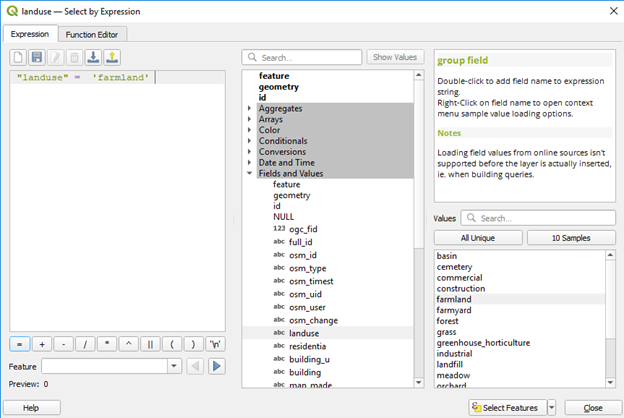
Select features using an expressiontool to open it. - In the resulting dialog, expand the
Fields and Valuesitem in the middle pane, double-clicklanduseto add to the expression box (left pane). - With
landusestill selected, click onAll Uniqueunder theValuespane on the right. - In that pane, double-click
farmlandto add to the expression box. ClickSelect Featureson the lower-right to select the features.
On the title bar of the attribute table, or in the map canvas, you can see the selected features.
- On the lower left of the attribute table, click in the box that says
Show All Featuresand selectShow Selected Features. How many features are selected?
You will now create a layer of farms from the selected features.
- Right-click on the
landuselayer and selectExport --> Save Selected Features As. Specify the location and file name and save. - Under
Format, chooseESRI shapefileand clickOK.
- Now, in the attribute table, choose to
Deselect all features. - Drag and drop the
OpenStreetMapunder theXYZ Tilesin theBrowser panel. - Zoom in to inspect the location of the farms and ascertain if accurate.
- Remove the OpenStreetMap layer.
Reprojecting
The current data is in WGS84 Geographic Coordinate System (GCS). Sometimes, you may need to change the CRS of data from different sources into a common CRS. You may also need to add a projected coordinate system to dataset for some spatial analysis. You will change the CRS of the farms dataset. Currently, the project CRS is the same as that of the first layer you added.
- Right-click
Farms --> Export --> Save Features As. Specify file name and location and chooseESRI shapefileformat. In the CRS box, click theSelect CRSbutton. - In the resulting dialog, in the
Filterbox, type Dominica to search. Choose theDominica 1945/British West Indies Grid (EPSG: 2002)and pressOK. - Press
OKagain to save the file.
A layer with projected coordinate system (PCS) can be reprojected (transformed) to another PCS. Try transforming the Farms layer with the Dominica 1945 / British West Indies Grid to WGS84 UTM Zone 20N.
- In the
Processing Toolbox, typeprojectin the search bar. - Double-click
Reproject layer. - In the resulting dialog, choose the right layer to be projected as input layer.
- For the target CRS, search for
UTMand scroll to chooseWGS 84 / UTM zone 20Nand clickRun. The reprojected layer would be added to the map canvas.
Extract Centroids
When you map farms as polygons, you may not need to map them as points. You can extract the central point of the farm. Try this.
- In the search bar of the
Processing Toolbox, typecentroid. * ChooseCentroidsunder theVector Geometry. - Specify
Farmsas the input layer. Click on the small arrow in the box to the right of the Centroids box and chooseSave to file. Specify the file name and save the layer as a shapefile. - Click
Runin the Centroids dialog box. The extracted centroids layer is added. - Zoom in and pan around to explore the centroids. Open the attribute table and note that the centroids layer inherited the attributes of the farms layer.
Calculate Area and Perimeter
Once farms are mapped as polygons, you can calculate the area or perimeter of the farm.
- Go to
Project --> Properties --> General tab. - Under
Measurements, choosemetersforunits for distance measurementandacresforunits for area measurement. - Leave the
Display coordinatesinmap units. - Ensure that the project projection is in
WGS 84 / UTM Zone 20N. - Click
ApplyandOK.
- Open the attribute table of the
farmlayer with the UTM Zone 20N projection. - Click on the
Open field calculatorbutton on the attribute table toolbar and choose toCreate a new field. - Name the field
Area;output field type=decimal number (real);precision=2. - To calculate the field, expand the
Geometryitem in the Show Values box. - Double-click
$areato add to the expression box and clickOK. The calculated area should be added to the table (last column).
- In the attribute table, toggle the editing mode off and
Save edits.
Remember the unit is same as you specified in the project properties (acres).
- Repeat the process in the
farmlayer with the Dominica 1945 / British West Indies Grid projection.
- Compare the area for the farm with
ogc_fid 142. Are they the same?
Querying attributes
Make a definition (attribute) query in any of the layers to identify farms with area less than or equal to 2 acres; and those larger than or equal to 10 acres.
Generate statistics
To generate simple statistics for the field Area:
- In the
Processing Toolboxsearch bar, search forstat. ChooseBasic statistics for fieldsunder theVector analysissection. - Choose the farm layer as the input layer, and
Areaas theField to calculate statistics on. We will keep this as a temporary file so clickRun. Once completed, the stats info is displayed under the log tab.
Update farm records with tabular join
Let’s work with the layer having the UTM Zone 20N projection (so remove the other farm layers, if any).
- Open the
attribute tableof this layer and use theField Calculatorto insert aFieldwith nameFarmID. - Expand the
variableitem and double-clickrow-numberto add to the expression box. ClickOK. Row numbers are assigned as IDs under the fieldFarmID.
We will use this ID to join a hypothetical tabular information collected from the farms.
- In the
Browser pane, browse to your data folder, drag and drop theFarmAttributes.csvfile to the map canvas (it is added to the layers panel). - Right-click the
Farms --> Properties --> Joins. - In the resulting dialog, complete the required fields as shown in the figure below.
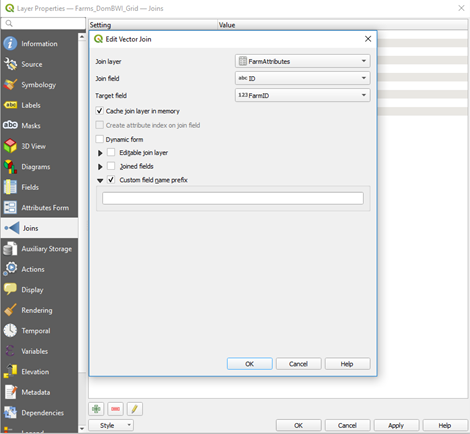
- Click
OKandOKagain to complete the join. - Open the
attribute tableof theFarms layerand ensure that the fields are joined. The join is temporary, so a new shapefile can be created to make it permanent. - Right-click on the
Farms layer --> Export --> Save Features As…save it as shapefile and specify file name and location. - Remove the
FarmAttributes.csvfile.
Estimate yield (kg/acre)
In the new layer with the join fields, you have average yield of the main crops. Multiplying this by the area should give you an estimated yield.
- Open the
attribute tableof the newly createdlayer --> Field Calculator. Give a suitable name to the new field, choosedecimal number (real)withprecision=2. - Expand the
Fields and Valuesitem and make the expression:Area * AvgYield. - Click
Ok. - Stop edits and save edits.
The estimated yield of each main crop for each farm is provided in the last column.
- Make a definition query to select female farmers who grow
dasheen. Your query should look like this:"Sex" = 'F' AND "MainCrop" = 'dasheen'. The query result can also be used to answer the question which female farmer has the largest/smallest area of dasheen.
Generate group statistics
- Search again for
statin theProcessing Toolboxand choosestatistics by category. - In the resulting dialog, choose the newly created join layer as input layer; choose the estimated yield as the field to calculate statistics on (this should be numeric).
- Click on the dots next to the box for
Field(s) with categoriesand tickmaincropandsex. ClickRun. The output would be seen in the Layers panel as a table. Right-click on it--> Open Attribute Tableand view the result, which shows estimated yield statistics by sex and main crop. The count field is the same as frequency. * To save the temporary group statistics layer, right-click and choose make permanent (or export). - Save your project.
Fix geometry and count points in polygon
Some polygon datasets have geometry errors that might only show up during geoprocessing such as overlay. Here, we want to count the number of farms in a given soil class or attributes. We will use the Farm centroids layer. Add the lsd_soil shapefile. Familiarize yourself with the attribute table. In the Processing Toolbox, search for point and choose Count points in polygon under the Vector analysis item.
- Complete the dialog box as follows: Polygon = lsd_soil layer; Points = Farmcentroid; Count field name = default.
- Click Run.
You may get an error message that the soil layer has geometry errors. You can check which polygons have geometry errors (normally holes in the layer) by using Check validity (under vector geometry) – search for valid in the Processing Toolbox.
- In the check validity dialog, choose the soil layer as input and check
Ignore ring self intersections. - Click
Runto keep all outputs as temporary.
Check the valid and invalid outputs visually.
- Repeat the process without checking the
Ignore ring self intersections. Are the outputs similar?
Let’s fix the geometry error.
- In the
Processing Toolbox, findFix geometries: Input layer = lsd_soil; Repair method = structure; Fixed geometries (choose to save the file with appropriate name). - Click
Run.
- Now use the soil layer with fixed geometry and run again the
Count points in polygonalgorithm. -
If successful, open the
Countlayer attribute table. Note that this operation keeps the attributes of the soil layer and adds a field with the count of soil points. - Make an expression to select
NUMPOINTS > 0. - Export the selected features to a new shapefile and choose to add the project.
- Open the attribute table and explore it.
You will change the field name of NUMPOINTS to something more meaningful.
Edit Field Name
- Search for
Renamein theProcessing Toolboxand chooseRename field. - In the resulting dialog box, choose your
Count layer, chooseNUMPOINTSfor theField to rename, and give the new name in theNew field namebox (e.g., NumFarms).
How many farms are in the soil type Kandoid latosol or Young soil (check the Field called type).
Polygon-Polygon Overlay
- On the menu bar, go to
Vector > Geoprocessing tools > Intersection. Input layer = soil layer with fixed geometries; Overlay layer = Farms layer with the attribute joined. Note: In theInput fields to keep, you can choose which fields in the attribute table of the input layer you want to preserve in the resulting overlay layer. Similarly, in theOverlay fields to keepbox, you can choose the fields in the overlay layer to be kept in the resulting layer. Leave these as default for now. - Click Run.
In the resulting layer, examine the attributes. When you do a polygon-polygon overlay, it is always a good idea to re-calculate the geometric area of each polygon feature and not to rely on the previous area.
- Use the
Field Calculatorto calculate the area in a new field and compare the values with the old area in the attribute table. - Now, run
Statistics by categories, using the newly calculated area as theField to calculate statistics on. You can choose the fieldtypeas theField(s) with categories. - Click
Run.
Explore the result. Which two soil types are commonest under the farms in the study area? Which soil covers the largest area of farmlands?
- Close the table.
- Re-run the
Statistics by categoryagain, this time addMainCropandtypeto theField(s) with categoriesbox.
Note that this output is temporary (you may make it permanent by saving it if you want). Explore the result. Which crop has the largest area coverage (and on which soil type does it occur)? Ensure that the answer is dasheen on Young soils (if you are not sure, sort the field called sum).
Geometric selection
So far, you have practiced attribute-based selection. Now you will select features based on their geometric or geographic relationship with features in another layer.
- Add the
lsd_Riverslayer andppd_Parishlayer.
You will subset the Parish layer and use the subset to clip an area of interest from the Rivers layer. Open the attribute table of the Parish layer and select the southern parishes that overlaps with the farms.
- Write an expression that looks like in the image below.
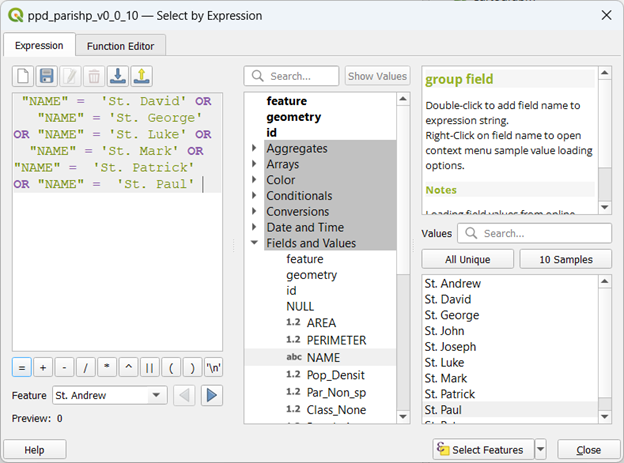
- Once the appropriate parishes are selected, export the selected parishes to a new shapefile and choose to add it to the project.
- Remove the original parish layer.
Because the Rivers layer is large (covers the whole country), you will clip it to the study parish layer.
- On the menu bar, go to
Vector > Geoprocessing tools > Clip. - Choose the Rivers layer as input; the subset parish layer as the overlay layer and click
Run(if you get error, fix the geometry first and run the clip algorithm again). - Once successful, remove the original Rivers layer. Make the result permanent and save your project.
Select by location
- On the menu bar, go to
Vector > Research Tools > Select By Location. Complete the following:Select Features from: Farms with the attribute joined (the polygon layer),Where the features:intersect,By comparing to the features from: the clipped Rivers layer. - Click
Run. - Open the
attribute tableof farms layer and choose toshow selected features. How many farms intersect rivers? - In the map canvas, turn off all the layers except the farms layer, zoom in to see which farms were selected.
Select within a distance
You will now select features based on distance to features in another layer. Example, you might be interested in which farms are within a given distance of a protected area.
- In the
Processing Toolbox, expand theVector Selection --> Select within distance.Select Features From: Farmcentroids;By comparing to the features from: clipped Rivers layer;Where the features are within:50 meters - Click
Run. - Open the Farmcentroids attribute table and check how many features are selected to be within 50 meters of rivers.
Extract raster values to points
You might be interested in the elevation of a given farm location. You can extract the elevation from a digital elevation model (DEM) using point features.
- Add the
Voidfilled_DEMraster data and then theFarmcentroidslayer.
Note that the DEM layer is unprojected and has WGS84 GCS.
- In the
Processing Toolbox, go toRaster Analysis --> Sample raster values. Input layer: Farmcentroids; Raster layer: Voidfilled_DEM; Output column prefix = ELEV_ - Click
Run. - Open the Farmcentroids attribute table and check the last column or field to see the extracted elevation values for the farm locations. You may use the
Identify toolto explore the elevations of a few farms.
Zonal Statistics
- Add the Void_filled DEM raster data. You can reproject (warp) to WGS84 / UTM Zone 20N.
- Add the Parish layer you used previously to the map.
- In the
Processing toolbox, search for ‘zonal’ and chooseZonal statistics.- Input layer: parishes;
- Raster layer: DEM;
- Output column prefix: ELEV_
- Statistics to calculate: click the 3 dots and choose Mean, Minimum, Maximum
- You may choose to save the Zonal statistics output layer.
- Click Run.
- Open the attribute table of the resulting zonal statistics output layer and look for the statistics calculated (in the last columns, with the prefix ELEV_).
Zonal Histogram
For each Dominica parish, you will calculate zonal histogram to summarize the pixel count of each land cover/use class in the ESRI land cover/use layers for the 2018 and 2022.
First, clip the land cover/use layer with the coastline layer.
- In the
Processing toolbox, search for ‘clip’ and chooseClip raster by mask layerunder the GDAL (Raster extraction) function. - Input layer = land use/cover raster. Mask layer = coastline. Ensure that the
Match the extent of the clipped raster to the extent of the mask layeris checked. - Click Run.
- Make the output or result permanent by exporting it as a
Geotiff. - After saving the clipped layers, remove the temporary clipped layers and the original land use/cover layers. You may as well remove the coastline layer.
- Colour the clipped layers by assigning the land use/cover classes obtainable from the Class Definitions table below.
- Double-click one of the clipped layers to open the property window.
- Click the
Symbologytab.- Render type = Paletted/Unique values;
- Click Classify at the bottom left to see the classes and labels.
- Under
label, double click on a class number and type in the right name obtained from the metadata. The class numbers are below:
Class definitions table
| Class (Value) | Name | Description |
| 1 | Water | Areas where water was predominantly present throughout the year; may not cover areas with sporadic or ephemeral water; contains little to no sparse vegetation, no rock outcrop nor built up features like docks; examples: rivers, ponds, lakes, oceans, flooded salt plains. |
| 2 | Trees | Any significant clustering of tall (~15 feet or higher) dense vegetation, typically with a closed or dense canopy; examples: wooded vegetation, clusters of dense tall vegetation within savannas, plantations, swamp or mangroves (dense/tall vegetation with ephemeral water or canopy too thick to detect water underneath). |
| 4 | Flooded vegetation | Areas of any type of vegetation with obvious intermixing of water throughout a majority of the year; seasonally flooded area that is a mix of grass/shrub/trees/bare ground; examples: flooded mangroves, emergent vegetation, rice paddies and other heavily irrigated and inundated agriculture. |
| 5 | Crops | Human planted/plotted cereals, grasses, and crops not at tree height; examples: corn, wheat, soy, fallow plots of structured land. |
| 7 | Built area | Human made structures; major road and rail networks; large homogenous impervious surfaces including parking structures, office buildings and residential housing; examples: houses, dense villages / towns / cities, paved roads, asphalt. |
| 8 | Bare ground | Areas of rock or soil with very sparse to no vegetation for the entire year; large areas of sand and deserts with no to little vegetation; examples: exposed rock or soil, desert and sand dunes, dry salt flats/pans, dried lake beds, mines. |
| 9 | Snow/ice | Large homogenous areas of permanent snow or ice, typically only in mountain areas or highest latitudes; examples: glaciers, permanent snowpack, snow fields. |
| 10 | Clouds | No land cover information due to persistent cloud cover. |
| 11 | Rangeland | Open areas covered in homogenous grasses with little to no taller vegetation; wild cereals and grasses with no obvious human plotting (i.e., not a plotted field); examples: natural meadows and fields with sparse to no tree cover, open savanna with few to no trees, parks/golf courses/lawns, pastures. Mix of small clusters of plants or single plants dispersed on a landscape that shows exposed soil or rock; scrub-filled clearings within dense forests that are clearly not taller than trees; examples: moderate to sparse cover of bushes, shrubs and tufts of grass, savannas with very sparse grasses, trees or other plants. |
Credit: Sentinel-2 10m Land Use/Land Cover Time Series
Change colours of the layers: Once the class labels are assigned, you can double-click individual colours beside the labels and change them to suit your preference.
- Try changing the colour of one class, click Apply to see how it looks like on the map. Complete the styling of the map.
- You can save the style to use in the future. At the lower left of the property dialog, click
Style --> Save Styleand browse to save it at a desired location. - To use the saved style on a different layer, open the property dialog of the layer to be styled, click
Style --> Load styleand browse to the saved style.
Alternatively, you can click OK in the current property dialog to exit. You can then copy the style:
- Right-click the stylized layer –>
Copy style. - Then, right-click the other layer –>
Paste style. Explore the maps for accuracy based on your local knowledge. - Add the parishes layer. In the
Processing toolbox, search for ‘zonal histogram’.- Raster layer = one of the land use/cover layers.
- Vector layer containing zones = Parishes.
- Leave the rest as default.
- Click Run.
- Open the output table of the result, look for the columns with
HISTO_as the suffix to see the number of pixels (or pixel count) for each land use/cover class in each parish. - Calculate area of crop:
- Check the pixel size of the land use/cover layer under the information tab in the properties dialog. Note that it is 10 m. Confirm this information with the metadata of the land use/cover layer.
- Go to
Project --> Properties --> Generaltab. Ensure that the units for area measurement is in meters. Close the project property dialog.
- Go to
- Check the pixel size of the land use/cover layer under the information tab in the properties dialog. Note that it is 10 m. Confirm this information with the metadata of the land use/cover layer.
The land use/cover class 5 denotes crops. Let’s calculate the area of crops in each parish.
- Click on the
Field Calculatoron the toolbar of the attribute table. - Ensure that the
Create a new field is checked. - Name the new field CropArea
- Datatype = Decimal number
- Field length = 10
- Precision = 2
- In the expression box, multiply the
HISTO_5field by 10 by 10 (the cell area of the land use/cover layer as seen from the metadata). Your expression should look like:“HISTO_5” * 10 * 10
- Click OK to evaluate the expression.
- Check the result in the attribute table (note that the area is in square meters).
Explore the results.
- Which parish has the largest/smallest crop area?
- Compute area of trees and indicate which parishes have the largest/smallest area of trees.
You can also map the parishes based on any of the attributes (e.g. crop area or number of trees).
Raster Calculator: you can use the raster Calculator to apply mathematical functions to one or more raster layers. Here, you will multiply the 2022 layer by 10 or 100.
- In the
Processing toolbox, search for calculator and chooseRaster calculator. - In the dialog box, double-click on the 2022 raster layer to add it to the expression box.
- Click * to add to the box and type 10 (or 100, whichever you prefer) into the box.
- Scroll down to set the cell size or the layer from which cell size and CRS should be obtained.
- Click Run.
Examine the output to note the cell values have changed but the data (map) itself is not changed. This is simply a reclassification.