On this page:
Georeferencing
Setting Project CRS:
Project --> Properties --> CRS.- Search for the CRS of interest (e.g. WGS 84) and Apply.
Georeferencing
- Set the project CRS.
Open the georeferencer tool:
- On menu bar, go to
Layer --> Georeferencer. - In the resulting
Georeferencerwindow, go toFile --> Open Rasterand browse to add the image or layer to be georeferenced.
Now set the georeferencing transformation settings in the Georeferencer window:
- Go to:
Settings --> Transformation settings. - Set
Transformation type=linear. Resampling method=Nearest neighbour.- Target SRS: click the
Select CRSbutton and then select the CRS native to the image to be georeferenced. - Specify output file name and location.
- Check
Load in project when done. - In the
Georeferencerwindow, click theAdd Pointtool on the toolbar and click the location for the first GCP. TheEnter Map Coordinatesdialog opens. - Enter the X and Y values for the GCP and press
OK(ensuring that the CRS is the same as specified earlier). - Continue to place other GCPs following the same procedure.
Supporting data:
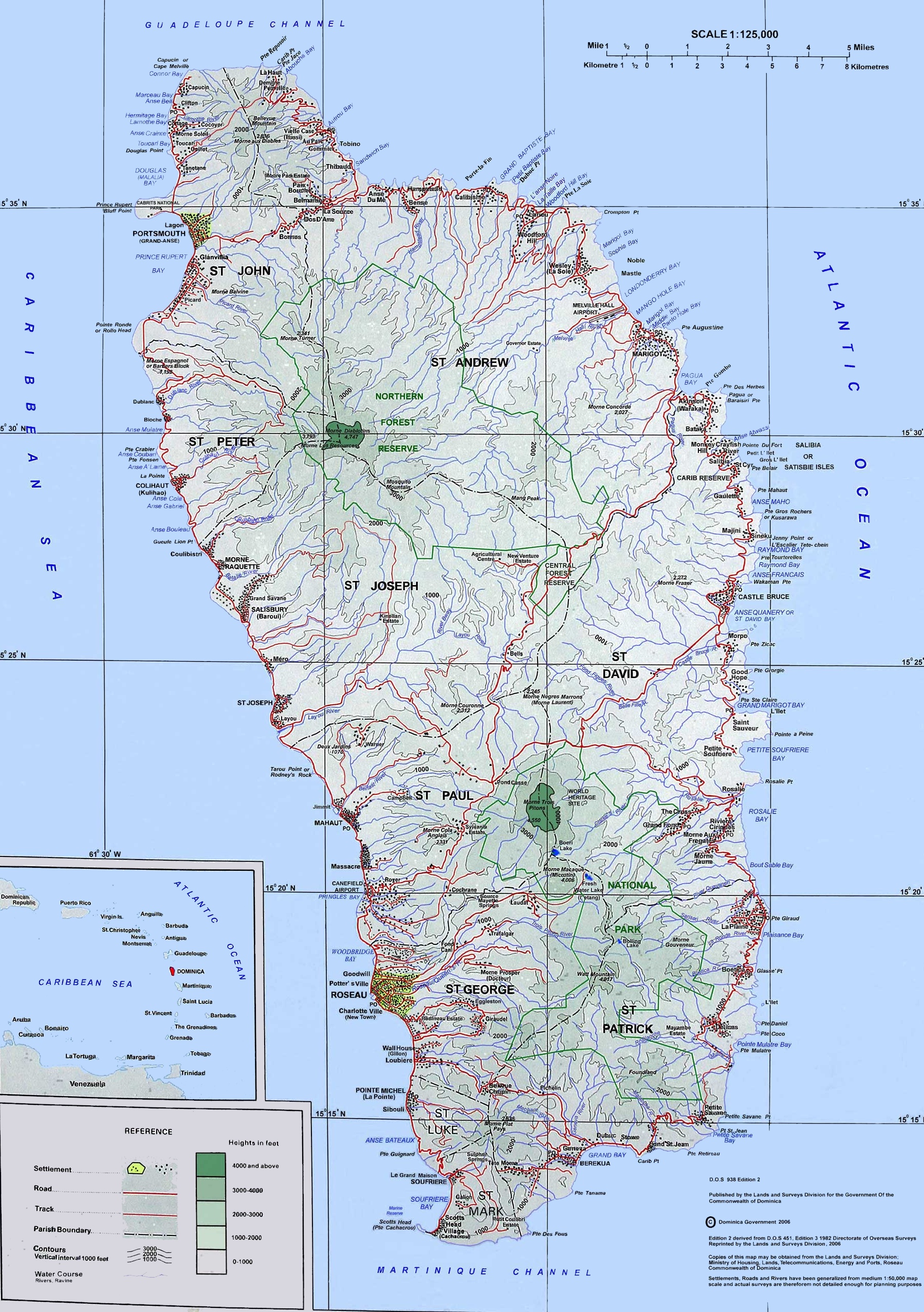
GCP information:
| Label | Description | Lon | Lat |
| 0 | Junction of Granby St & Bay St (Portsmouth) | -61.455949 | 15.573490 |
| 1 | Junction of Castle Bruce Rd & East Coast Rd | -61.259719 | 15.434244 |
| 2 | T-Junction on Goodwill Rd | -61.388860 | 15.315476 |
- To delete a point, click on the
Delete Pointtool on the toolbar and click on the point you want to delete. - You can also move the GCP point to a desired location by clicking on the
Move GCP Pointtool and clicking on the target point and move it to where you want.
Once about three ground control points are added, you may see the georeferencing error as a red line coming out of the points. The error in pixels can be seen also in the GCP table in the dX(pixels) and dY(pixels) columns. Error in pixels should not be higher than 10 pixels. If it is, you should review the points you have digitized and the coordinates you have entered to find what the problem is.
The GCPs can be saved for later use:
- Go to
File --> Save GCP points as…. Specify the name and location and save.
To complete the georeferencing:
- Go to
File --> Start Georeferencing. The georeferencing is completed and the layer is added to the map canvas.